Hair, Fur and Glass: Getting Clean Cut-Outs
Why hair, fur, glass, smoke and low-contrast edges are hard to cut out, when Standard is enough, when HD helps, and how to shoot photos that cut out well.
Most cut-outs are easy. A mug on a table, a shoe on the floor, a person against a plain wall: the edge is clear and any good background remover gets it right. Then there are the photos that fight back. This guide explains what makes an edge hard, which quality level to use, and how to take photos that cut out cleanly.
What makes an edge hard
A background remover has to decide, pixel by pixel, how much belongs to the subject. That is simple on a solid edge and difficult anywhere the subject and background mix.
Hair. Loose strands are often thinner than a single pixel. A strand pixel is part hair, part background, so the tool has to keep a partly transparent pixel rather than choose one or the other. Get it wrong and you see a helmet-like outline or a halo of the old background.
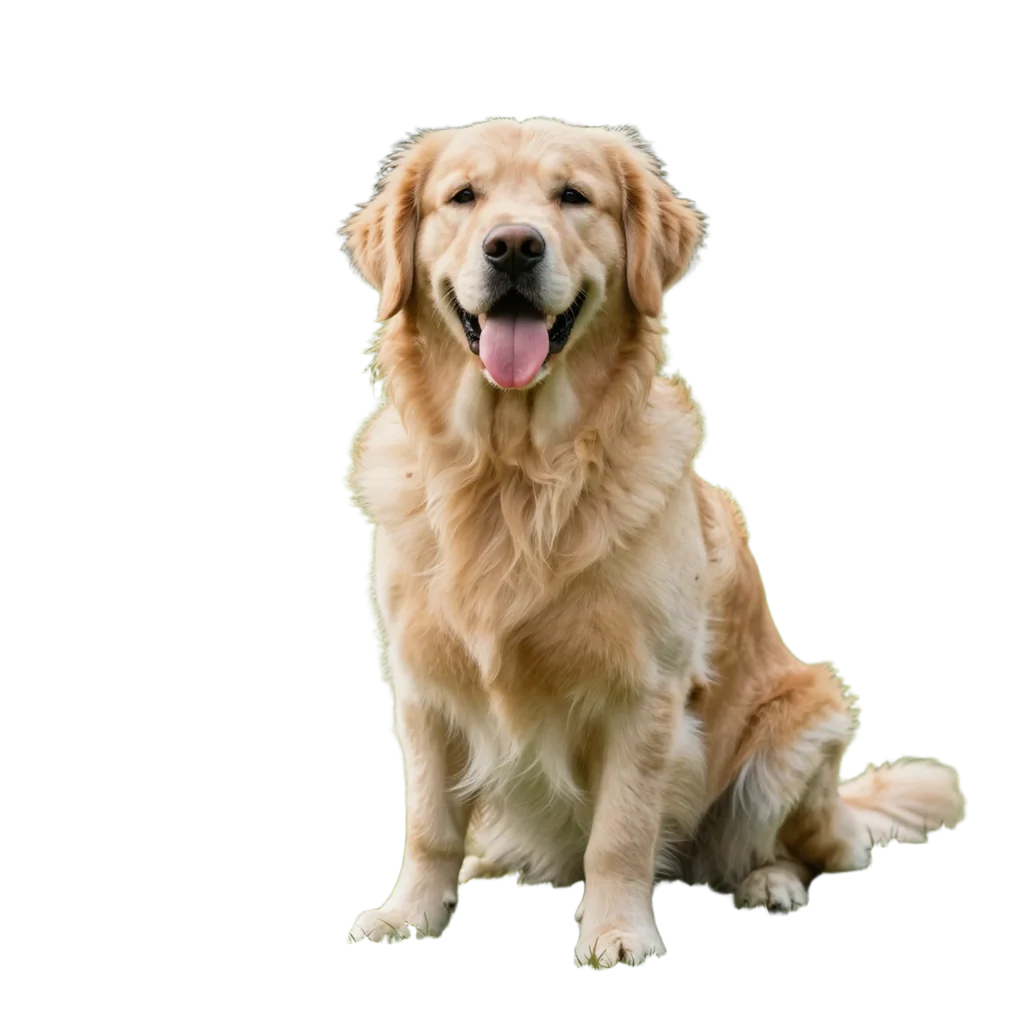
Fur. The same problem as hair, multiplied. Soft, fluffy coats have no single edge at all, just a gradual fade from dense fur to air.
Glass and clear plastic. You see the background through the object. A perfect cut-out of a wine glass would keep the glass partly transparent, but the background seen through it is baked into the photo. Expect to keep some of that in the result.
Smoke, steam, veils and lace. These are mostly transparent with fine detail. They are among the hardest subjects for any tool.
Low contrast. A white cat on a white sofa, a black jacket against a dark door. When colours match, there is little information about where the edge is.
Motion blur and soft focus. A blurred edge is a wide gradient instead of a line, and the tool has to guess where to cut.
Standard or HD?
BG Removal offers two quality levels.
Standard is fast and cheaper per photo. It works well for:
- products and objects with solid outlines;
- people with neat or tied-back hair against a plain background;
- logos, illustrations and graphics;
- photos you will show small, like thumbnails and profile pictures.
HD uses a dedicated cut-out model that keeps fine detail better. It is worth it for:
- loose, curly or flyaway hair;
- pets and fluffy fabrics;
- plants, lace, mesh and other fine patterns;
- subjects that are close in colour to their background;
- images you will print or show large, where a rough edge is obvious.
A simple approach: run Standard first, check the edges with the before/after slider, and redo only the difficult photos in HD. Credit costs for both are on the pricing page.
Glass needs a different expectation
No tool can know what was behind a glass object in the real scene. For glassware:
- Shoot against a plain, light background, so what shows through the glass is neutral.
- Place the result on a background of a similar tone. A clear glass cut from a white backdrop looks natural on white or light colours and odd on black.
How to take photos that cut out cleanly
- Make contrast. Choose a background that is clearly different from the subject in colour and brightness. Light hair on a dark wall, dark fur on a pale blanket.
- Use a plain background. Busy patterns, shelves and foliage behind hair are hard to separate.
- Light the subject, not just the room. Soft, even light on the subject. Light from slightly behind (rim light) helps separate hair from the background.
- Leave space. Keep a gap between the subject and the wall to avoid shadows on the background, and between the subject and the frame edge.
- Stay sharp. Use enough light for a fast shutter, hold still, and focus on the subject's edges, not just the centre.
- Use the largest original. A full-resolution photo has more pixels on each strand of hair than a resized or messaging-app copy.
Checking the result
Zoom in and check:
- Halos: a thin line of the old background around the subject. Placing the cut-out on a contrasting colour makes it obvious.
- Missing pieces: fingers, thin straps, ears or tails trimmed off.
- Leftover background: gaps between arms and body, or between hair strands, that should be clear.
If a Standard result shows these problems around hair or fur, try HD. If the problem is the photo itself (low contrast, blur), a reshoot will usually help more than any setting.
Try it on your own image
Drop in a photo and see the credits before you start.